
Edit Details
The Edit Details program allows you to edit or delete the existing records in the sales detail file. If the Allow Edit of Details check box is not checked in the Setup Options then you can only view the details. Access to this program and its functions can be controlled by setting Security.
To Edit Details:
- Open the Details folder (double-click Details).

- Run the Edit Details program (double-click Edit Details).
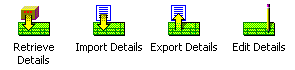
Click on the picture for more information.
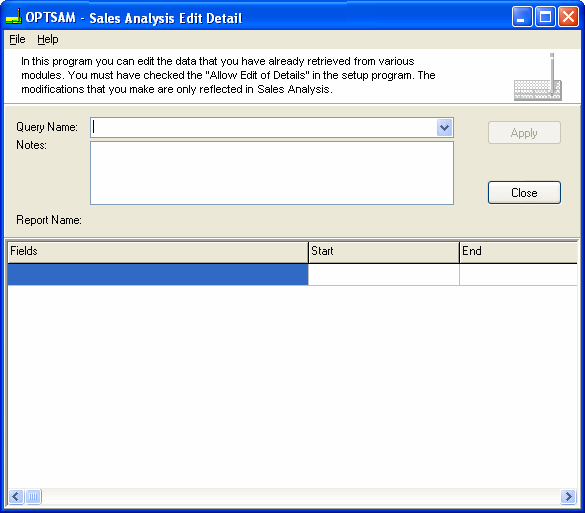
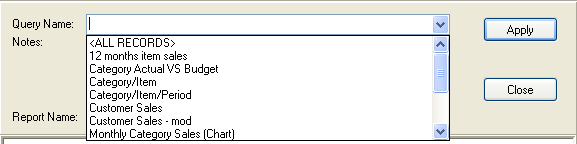
- To display records, chose ‘All records’ or a pre-existing query. To select a pre-existing query, click on the Query Name pull down list, in the main window, and choose a query from the available queries. The Queries are defined in the Inquiry and Report Engine.
Click on the picture for more information.
The window changes to show the query’s fields with the last saved range and order of fields.
Click on the picture for more information.
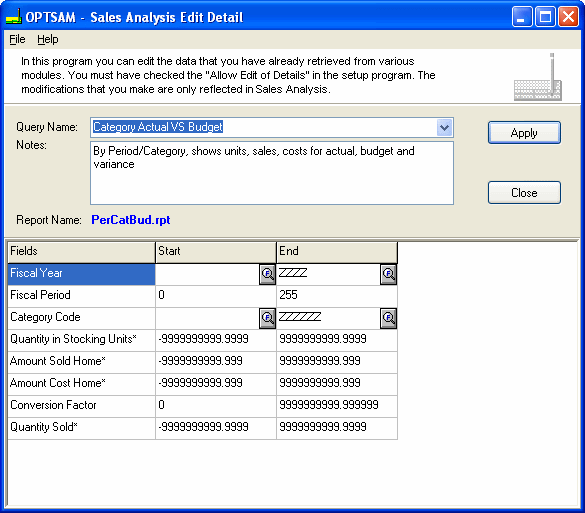
- Setting the range limits the data that gets extracted from the database to the query. Set the range using the start and end fields on the main window for any given field. Some of the fields may have a button on each of their range cells.
- The Finder displays a window with a grid of all the pertinent information for the field it is attached to.
- The Calendar button
 displays a calendar for selecting the date.
 - Optimizing a query speeds up the time between applying the query and viewing the results. To optimize a query, set the range to eliminate unwanted information. (E.g. set range to get rid of zeros). Include only desired fields in the range. (For example: set the start for quantity on order to 1 to eliminate all complete lines).
To apply the query, set the range, then use the Apply button.
- If the Allow Edit of Details is NOT checked in the Setup options a dialog informs you that editing is not selected.
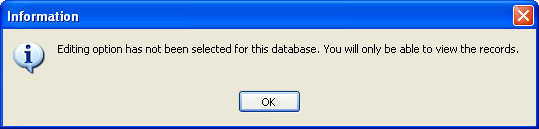
Applying a query applies the current range for the query to show the edit window.
Click on the picture for more information.
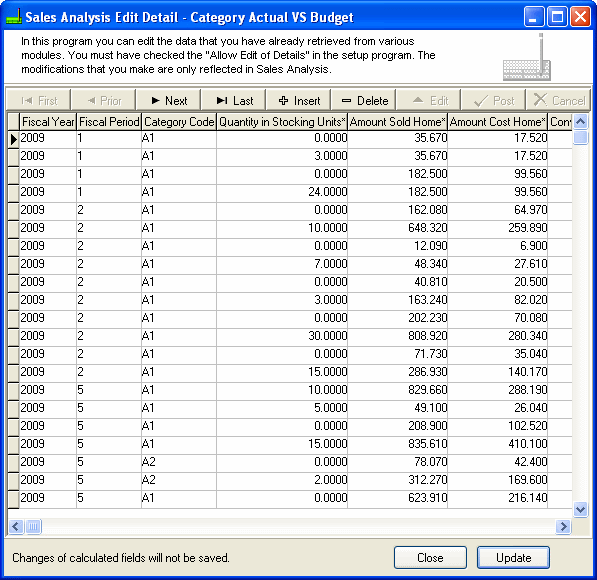
To Edit, change the cell then move to another cell to reflect the changes made to the detail line.
The navigator bar may be used to move from field to field or record to record. Use the Plus or Minus buttons to add additional record lines or remove existing records. Changes to the calculated fields, Quantity in stocking units, Margin $, Margin % (Sold), Margin % (Cost), will not be saved.
- To display records, chose ‘All records’ or a pre-existing query. To select a pre-existing query, click on the Query Name pull down list, in the main window, and choose a query from the available queries. The Queries are defined in the Inquiry and Report Engine.