Set Up Sage HR
- You need to be the administrator to set up Sage HR.
- You need to use Sage 300 Desktop.
To set up Sage HR:
Before you can set up Sage HR, you will need to activate it first.
Note: This will be a one-off process.
Tip: To avoid issues during setup, ensure Microsoft Edge WebView2 Runtime is installed in the Windows Control Panel. For more information, see Knowledgebase article: 240514212153870.
- Go to Administrative Services > Data Activation.
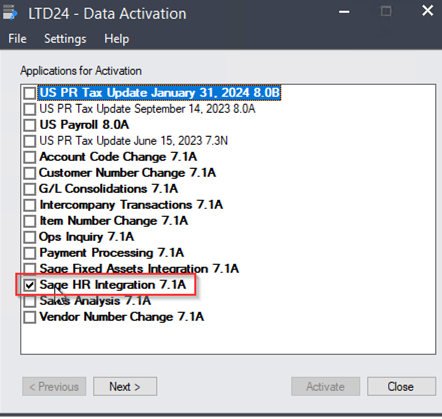
After successful activation, Sage HR will be visible in Common Services.
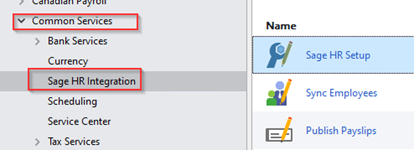
- Launch the Sage HR screen.
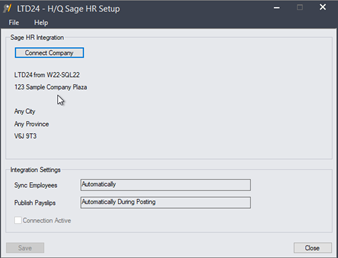
- Then, select Connect Company and a welcome message will appear.
- Click Get started below the welcome message to start the setup.
- Enter the email address and password in the authentication page.
- Click Login and wait for the confirmation page to pop-up.
- Open a browser, enter https://sage.hr/signin. Sign in with the same email address and password used in step 5.
- Confirm the existence of the new Sage HR company. Sign-out from Sage HR.
Note: To successfully connect your company, you will need to fill these boxes, found in Common Services > Company Profile Screen : Company Name, Tax Number, Business Registration Number and Country Name.
Important! Before you proceed, make a backup copy of the connection.dat file found in this folder: <shared data folder>\company\SageHRIntegration.
Tip: Include the SageHR Integration folder in your daily backup.
To disconnect from Sage HR:
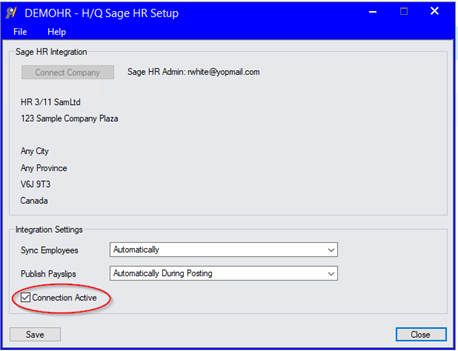
- From the Sage HR screen, deselect the Connection Active box.