
OE Credit Note Print
To Print an OE Credit Note:
-

- Open the OE Credit Note
Print program (double-click OE Credit Note Print).

- Print an OE Credit Note
or selection of credit notes using a specific report.
Click on the picture for more information.
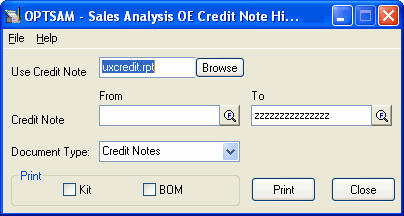
- Select which invoice report to use to print the credit note(s). The default is UXCredit.rpt.
- Select the starting (From) credit note.
- Select the ending (To) credit note.
- Choose whether you want to print credit notes or debit notes.
- Choose whether you want to print the components for kitting items and master items for BOMs.
- Click on the Print button to print the credit note(s).
- Click the Close button to close the OE Credit Note History Print program.
Note: If this Crystal Report is modified or a new one is created, care must be taken to include the correct parameters for printing.