See Also
To modify a budget, first make sure the budget is the current budget in the Budget Name pull down list, then you have two options:
Either of these will open the Modify Budget Window.
The program notifies you if the budget has not been saved. The budget must be saved before modifying.
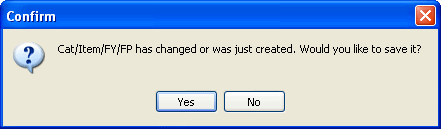
The Modify Budget Window appears with the last saved budget records.
Click on the picture for more information.
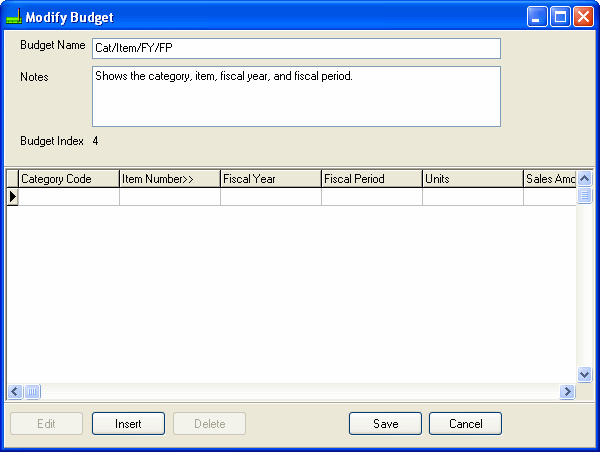
To Edit a Budget Detail line:
- Click the Edit button. The Edit/Insert Budget Detail dialog box appears.
To Enter (Insert) a Budget Detail line:
- Click the Insert button. The Edit/Insert Budget Detail dialog box appears.
Note: : It is recommended to use the Import Budget program rather than the Modify feature of this program for a Budget with many lines.
To Remove (Delete) a Budget Detail line:
- Click the Delete button. This will bring up the delete record confirmation dialog.
Click on the picture for more information.