Image of OE Invoice History screen. Image of OE Invoice History screen. Image of OE Invoice History screen. Image of OE Invoice History screen. Image of OE Invoice History screen. Image of OE Invoice History screen. Image of OE Invoice History screen. Image of OE Invoice History screen. Image of OE Invoice History screen. Image of OE Invoice History screen.

OE Invoice Print

To Print an Order Entry Invoice:

  1. Open the Invoice History folder (double-click Invoice History).

    Image of Main Menu icons, including Setup Details Invoice History, Budget, and Inquiry & Reporting.

  2. Open the OE Invoice Print form (double-click OE Invoice Print).

    Image of AR Document Inquiry menu including OE Invoice Inquiry, OE Credit Note Inquiry, OE Invoice Print, OE Credit Note Print, AR Document Inquiry, AR Document Print, History Inquiry and Report icons.

  3. Select which Crystal report that you want to use to print invoices. The default is UXInvoice.rpt.

    Click on the picture for more information.
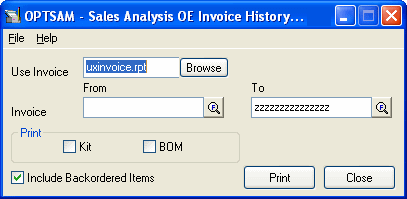
    Image of OE Invoice History screen.

  4. Select the starting (From) invoice.
  5. Select the ending (To) invoice.
  6. Click on the Print button to print the invoice(s).

Click the Close button to close the OE Invoice History Print program.

Note: If this Crystal Report is modified or a new one is created, care must be taken to include the correct parameters for printing.
