
OE Invoice Inquiry
OE Invoice Inquiry can display all invoices or limit the display to one customer’s invoices.
Invoice information is displayed from either Order Entry or Sales Analysis. The Display From at the bottom of the screen shows the current database. The double finder on the Invoice Number determines the database selection. The finder on the left selects from Order Entry. The finder on the right selects from Sales Analysis.
To do an OE Invoice Inquiry:
- Open the Invoice History
folder (double-click Invoice History).

- Open the OE Invoice Inquiry
program (double-click OE Invoice Inquiry).

- To limit the display to one customer’s invoices, use the finder on the Customer field to select from the AR Customer file or key in a customer code. All invoices displayed in either invoice number finder will show invoices for this customer only.
- To show all invoices in the finders or navigate through all invoices, clear the Customer field and either scroll or select the desired invoice.
- The Navigator bar scrolls through all available invoices. If a specific customer has been selected, the navigator will scroll through the invoices for that customer only. If no specific customer is selected then all invoices are available.
- The
 button next to the Customer drills down on
that customer to AR Inquiry Customer Inquiry, if installed and activated.
button next to the Customer drills down on
that customer to AR Inquiry Customer Inquiry, if installed and activated.
Header Detail
Click on the picture for more information.
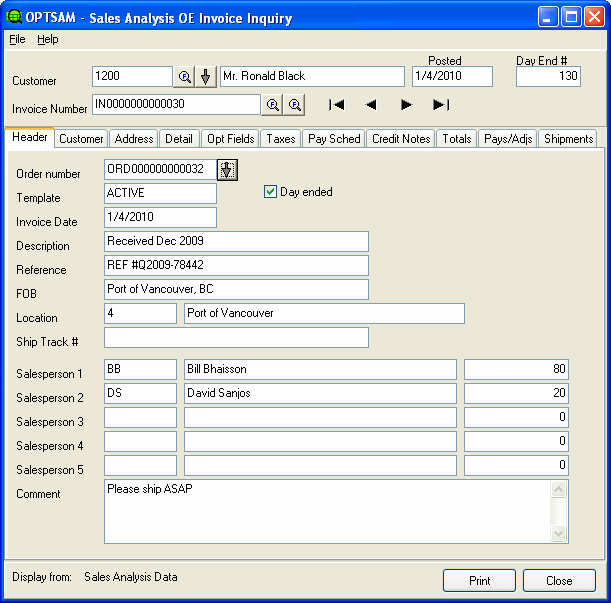
- The Header tab shows header information for the current invoice number. It shows Order Number, Comment, Template, Invoice Date, Description, Reference, FOB, Location and Salesperson 1-5.
- Click on the Print button to reprint this invoice.
- Click the Close button to exit the OE Invoice History Inquiry.
Customer Detail
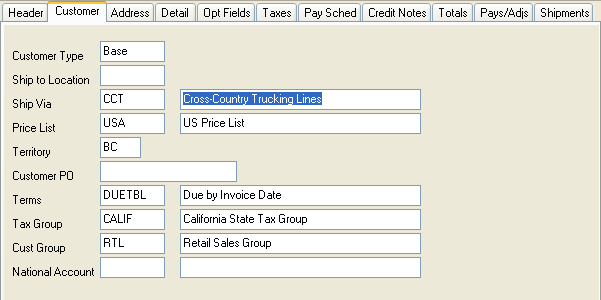
The Customer tab shows customer information for the current invoice number. It shows Customer Type, Ship to Location, Ship Via, Price List, Territory, Tax Group, Customer PO and Terms. The Customer Code and Name are always shown.
Address Detail
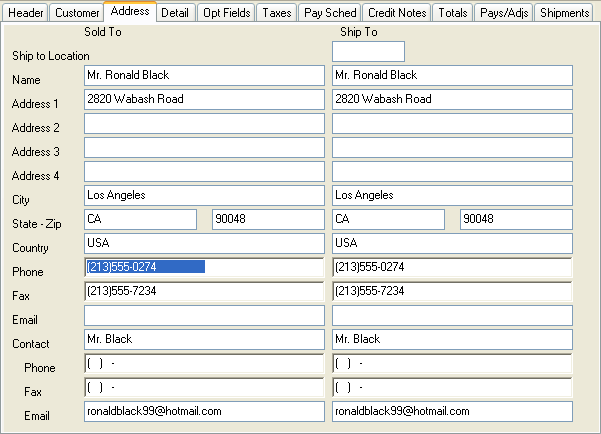
The Address tab shows Sold to and Ship to address information for the current invoice number. It shows the Ship to Location. For Sold to and Ship to it shows Name, Address fields 1-4, City, State, Zip, Country, Contact, Phone and Fax.
Invoice Detail
Click on the picture for more information.
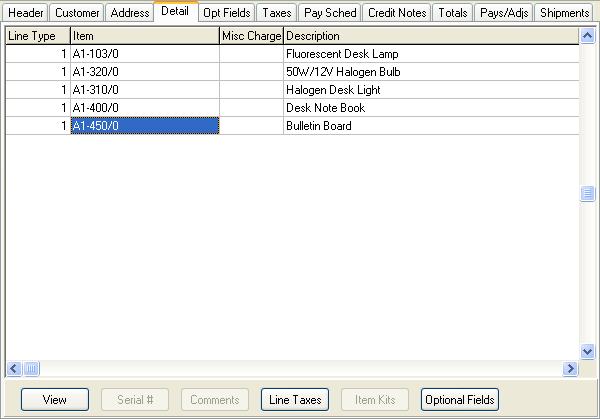
- The Detail tab shows the invoice details for the current invoice number. It shows columns for Line Type, Item, Misc Charge, Description, Account Set, Price List, Category, Location, Picking Sequence, Expected Ship, Stock Item, Qty Ordered, Qty Shipped, Qty Backordered, UOM, Unit Price, Extended Amount, Invoice Discount, Extended Amount Override, Unit Weight, Extended Weight and Misc Charge GL Account.
- The View button allows you to view the details for the current detail line.
- The Serial Number button allows you to view any serial numbers associated with the current detail line.
- The Comments button allows you to view the type and comment/instruction text for the current detail line.
- The Line Taxes button allows you to view the tax for the current detail line.
- The Item Kits button lets you view the components for master items.
- The Optional Fields button lets you view the Optional fields for this detail line.
Optional Fields
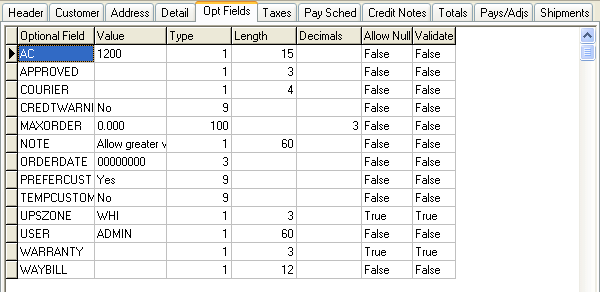
The Optional Fields tab shows any optional fields for the current invoice (as opposed to the optional fields on the detail line -- see previous image.
Taxes
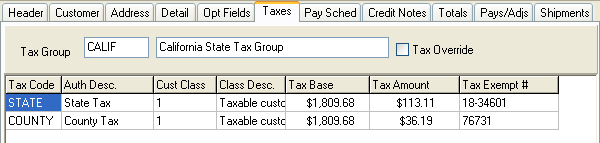
The Taxes tab shows the taxes for the current invoice number. It shows the Tax Group and description and if the tax has been overridden. It also shows Tax Code, Authority Description, Customer Tax Class, Customer Tax Class Description, Tax Base, Tax Amount and Tax Exempt Number.
Pay Sched
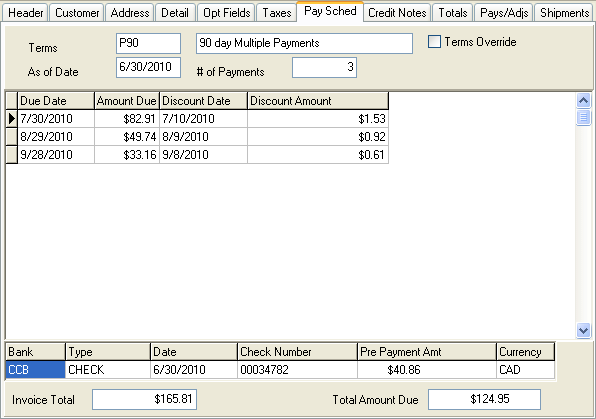
The Payment Schedules tab shows payment information for the current invoice number. It shows the Terms, As of Date, Number of Payments and if the terms have been overridden. It also shows the Due Date, Amount Due, Discount Date, Discount Amount, Total Amount Due and Invoice Total.
Credit Notes

The Credit Notes tab shows the credit notes for the current invoice number. It shows Credit Note Number, Credit Date, Amount, Invoice Date, Reference, PO Number, Description, Location and Currency.
Totals
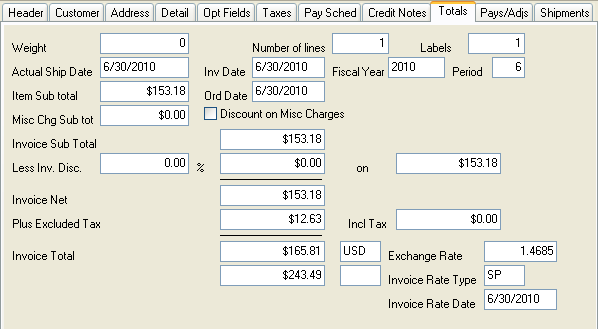
The Totals tab shows the total information for the current invoice number. It shows the Weight, Number of Lines, Labels, Actual Ship Date, Invoice Date, Fiscal Year, Period, Item Sub Total, Misc Charges Sub Total and if there is a Discount of Misc Charges. It also shows Invoice Sub Total, Invoice Discount, Invoice Net, Excluded Tax, Include Tax, Invoice Total, Invoice Rate Type, Invoice Rate Date and Exchange Rate. The totals are laid out such that you can see the calculation of the total.
Payments/Adjustments

The Payments/Adjs tab shows the payments and adjustments for the current invoice number. It shows Payment Number, Document Number, Check/Receipt Number, Document Date and Transaction Type. It also shows Amount Home, Amount Source, Exchange Rate, Deposit Number, Bank, Prepay Number and Reference Document.
Shipments

The Shipments tab shows the total number of shipments for this invoice. If there are more than one shipment, the Shipment Numbers will be listed in the grid. Double click on the Shipment Number to open Ops Inquiry – Shipment Inquiry, if installed. The Multiple Shipments box will be checked if there are multiple shipments for this invoice. If there is only one shipment for this invoice, the number will appear in the Shipment Number box. Use the Drill down arrow to open Ops Inquiry, if installed to display more information for this shipment.